 EveryMemory
Brain Games for Seniors on a Tablet
A tablet can be a brilliant brain-game device for an older adult - if it's set up right. Here's how to choose games, adjust the settings, and make a tablet genuinely senior-friendly.
Part of the guide: Helping a Parent With Memory Changes: The Complete Family Guide →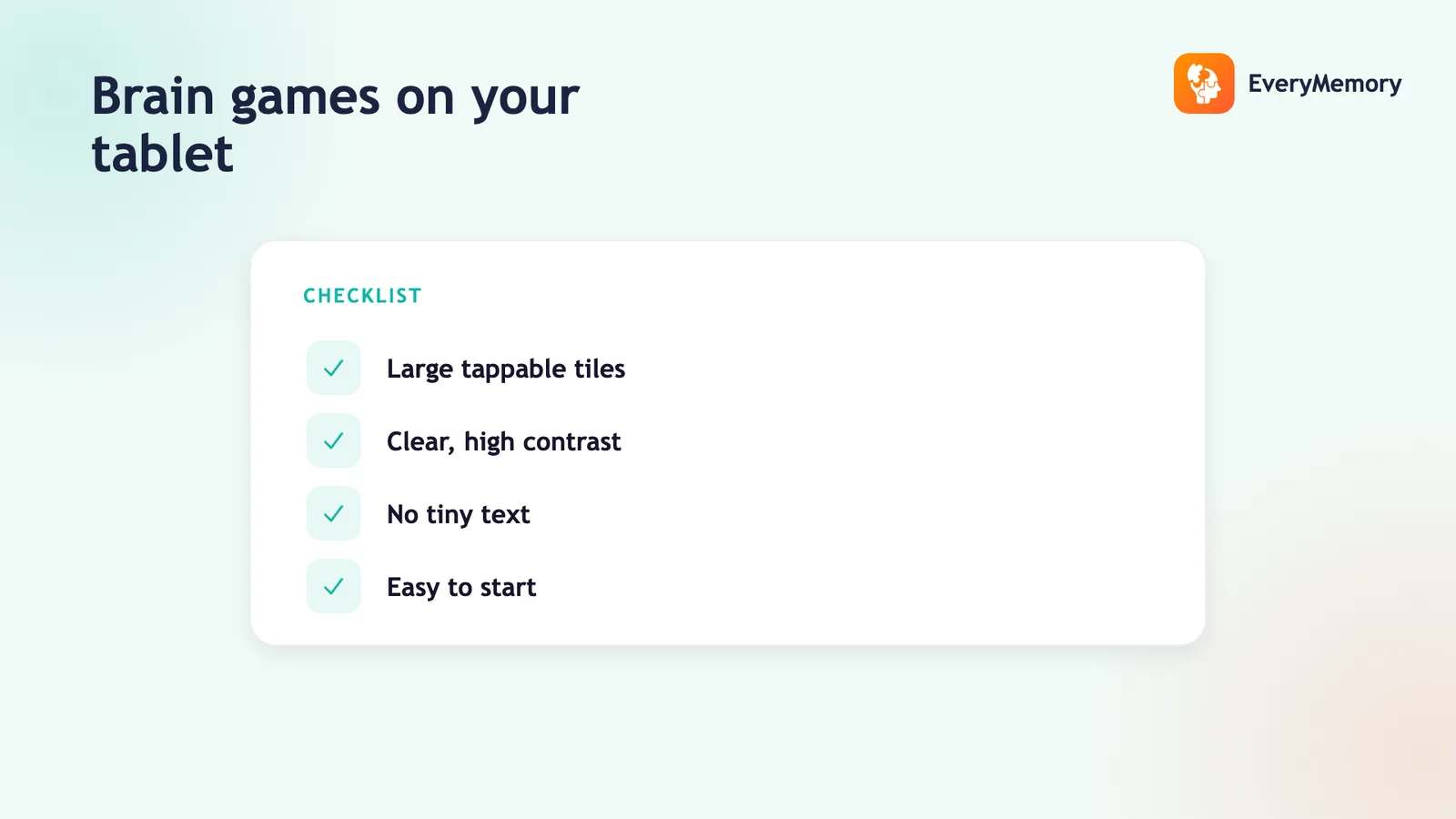
⚡ Quick answer
To set up brain games for seniors on a tablet, enlarge the text and icons, raise the contrast, and choose apps with big tap targets, simple rules, and a generous free mode. Start with one or two friendly games, keep sessions short, and sit alongside them for the first few tries.
Key takeaways
- Set up the device first - large text, high contrast, no auto-rotate or pop-ups.
- Good apps have big tap targets, simple rules, and a generous free mode.
- Tapping and matching suit a touchscreen; avoid precise dragging or fast swipes.
- Sit alongside for the first sessions and let them tap for themselves.
A tablet has real advantages for brain games: the screen is big, text can be enlarged, and one device holds endless variety with no paper to print. For many older adults it becomes a daily companion. The catch is setup - a tablet straight out of the box is rarely senior-friendly, and the wrong app sours the whole experience.
Get the settings and the app choices right, though, and a tablet turns into one of the easiest ways to keep a mind active. This guide covers what to install, how to adjust the device, and how to keep it pleasant rather than frustrating.
Setting up the tablet first
Before any app goes on, make the device itself easy to use. A few minutes in the settings prevents most of the frustration people blame on "technology."
- Increase text size and turn on bold text in the display settings.
- Raise the screen brightness and enable higher contrast.
- Make icons larger and remove clutter from the home screen.
- Turn off auto-rotate so the screen doesn't flip unexpectedly.
- Disable unnecessary notifications so nothing interrupts a game.
Both iPad and Android tablets have these options under Accessibility - well worth the setup time.
What makes a good tablet brain game
Not every popular app suits an older user. The good ones share a few traits, and spotting them saves a lot of trial and error.
| Look for | Avoid |
|---|---|
| Big, well-spaced tap targets | Tiny buttons crammed together |
| Simple, two-line rules | Long tutorials and complex menus |
| High contrast and large text | Faint colours and small fonts |
| A generous free mode | Constant pop-ups demanding payment |
| Short, stoppable sessions | Forced long levels with no exit |
EveryMemory is built with these in mind - large targets, simple rounds, and short sessions - and it's free to start. It's an enjoyable daily activity, not a treatment.
Game types that work well on a tablet
The touchscreen suits some games better than others. Tapping and matching feel natural; anything needing precise dragging or fast swipes tends to frustrate.
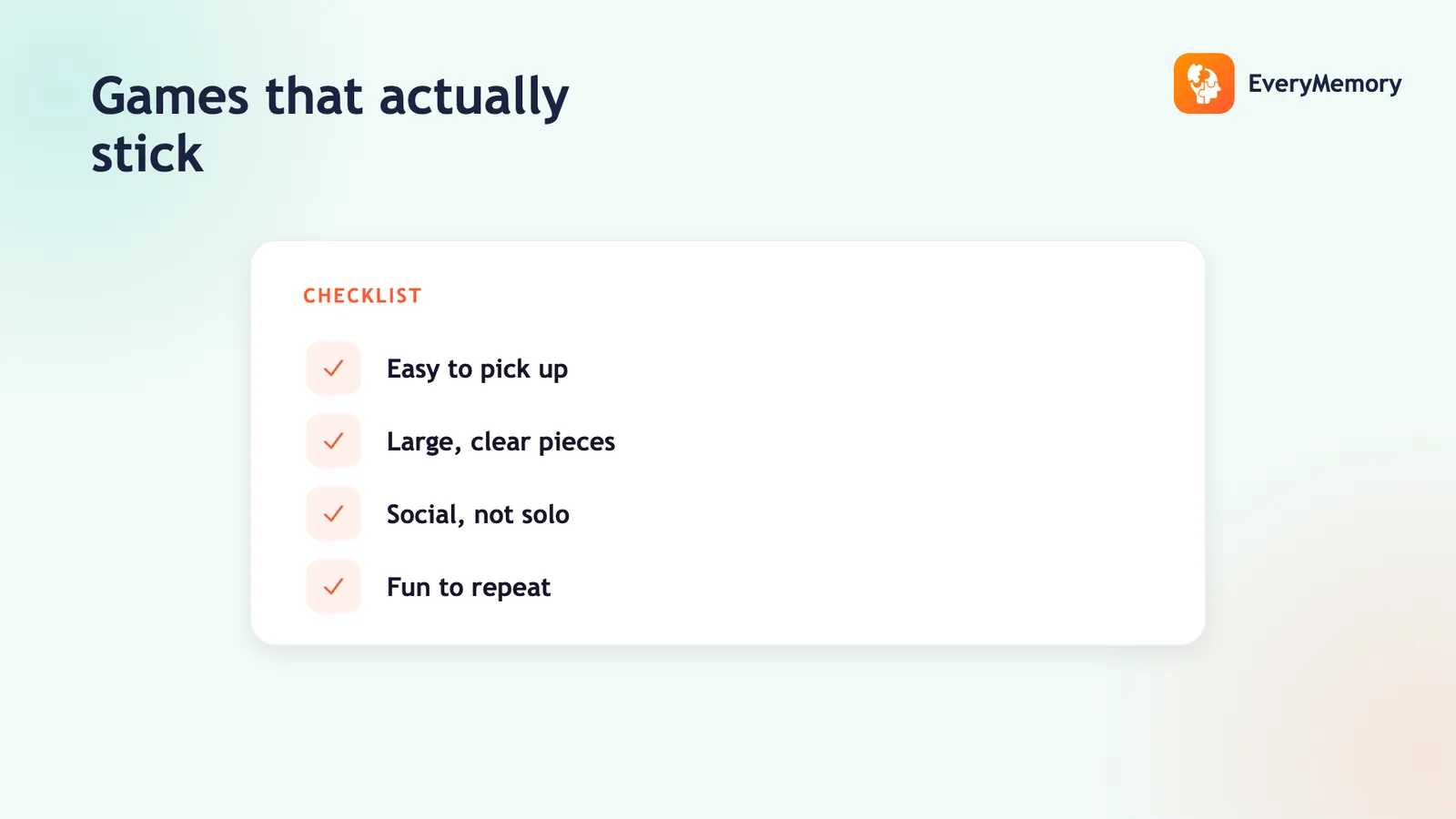
- Matching pairs - big tiles are perfect for tapping.
- Tap-the-target attention games - simple and satisfying.
- Word searches with pinch-to-zoom - paper's gentler cousin.
- Picture-recall games - clear images, easy taps.
- Daily brain trainers - variety without the clutter.
Helping someone get comfortable
The first few sessions decide whether the tablet sticks. Sit alongside, not over the shoulder, and let them tap for themselves even if it's slow - doing it for them undermines the point. Start with one app, master it together, then add more. A stand or a lightweight case helps tired hands and arms.
Keep sessions short and the mood light, and let them set the pace. For choosing apps that genuinely fit, see best brain games for elderly parents, and for a fuller picture of digital options, games for the elderly.
✅ Try this today - Make a tablet senior-ready in ten minutes
A quick setup before the first game ever loads.
- Open Accessibility and turn on larger, bold text.
- Raise brightness and contrast to comfortable levels.
- Put one simple brain-game app on a clear home screen.
- Turn off auto-rotate and silence notifications.
- Sit together for the first round and let them tap themselves.
⚠ When to talk to a professional
Tablet brain games are an enjoyable, non-medical way to keep a mind active - not a treatment or assessment of any condition. If you or a family member has a genuine or ongoing concern about memory, please speak with a doctor or qualified professional.